

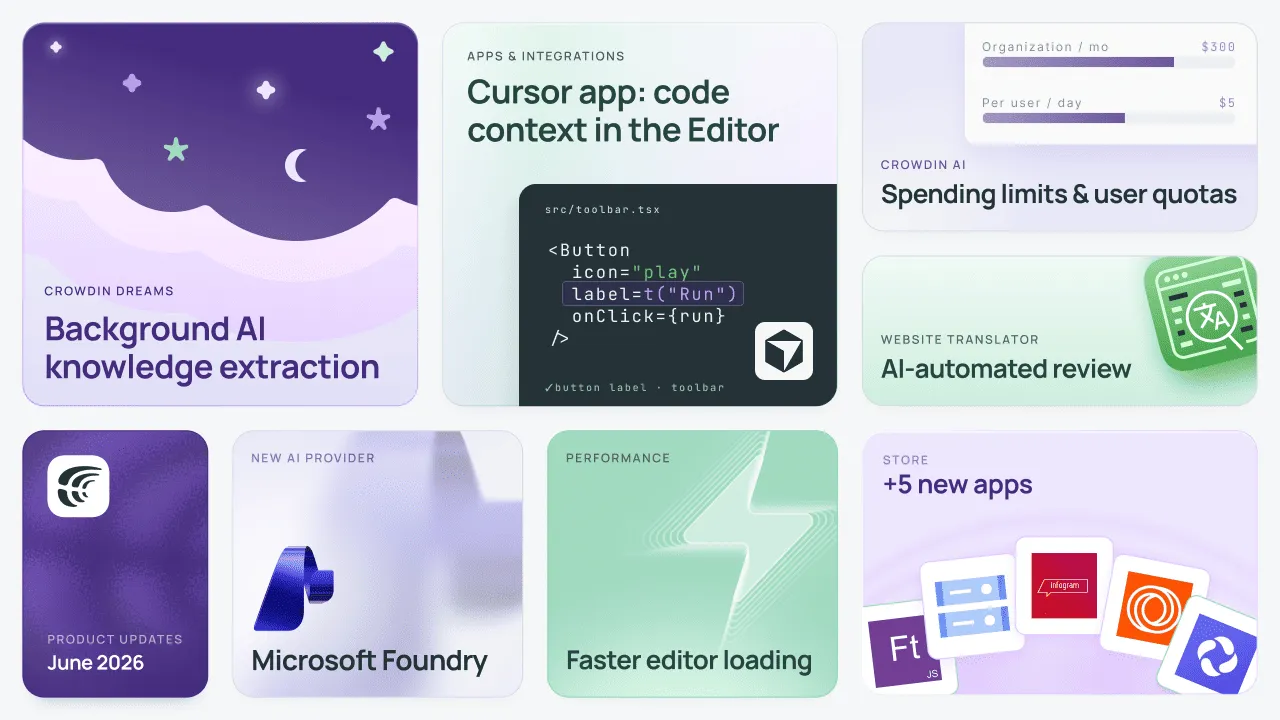
This June, we released Crowdin Dreams, that runs quietly in the background to analyze how your translators edit AI suggestions, then automatically improves glossaries, style guides, and AI prompts without any manual effort. We’ve also added a new glossary creation skill to Crowdin Copilot, letting you build termbases instantly from URLs or files, while the new Cursor app brings real code context into the Editor sidebar so translators never have to guess what a string actually means.
For teams managing AI costs, we’ve introduced spending limits at the organization and user levels, plus a Logs tab that tracks every AI call for 30 days. Read this article to learn more about this and other updates.
Crowdin Dreams: Background AI knowledge extraction
We are officially introducing Crowdin Dreams, a background “worker” that constantly improves your localization assets by analyzing human edits. If you’ve seen how developers use tools like Claude Code, you will love this concept applied to translation.
Instead of letting valuable post-editing insights vanish into your project history, Crowdin Dreams runs quietly in the background to study how your human linguists modify AI suggestions. For example, if it notices a translator regularly changing a formal greeting into a friendly, informal alternative, it draws systematic conclusions. It can automatically generate new glossary terms, refine your style guides, update your linting rules, and tweak your AI prompts.
Your AI pipeline automatically aligns with your team’s actual preferences, without requiring you to manually study translation memories or constantly rewrite your instructions.
How it works
- Turn it on: Install the app, then choose any AI provider you already use in Crowdin (e.g., OpenAI, Anthropic, Gemini).
- Select your projects: Choose projects you want to analyze. The app works silently in the background, gathering fresh human corrections once a day.
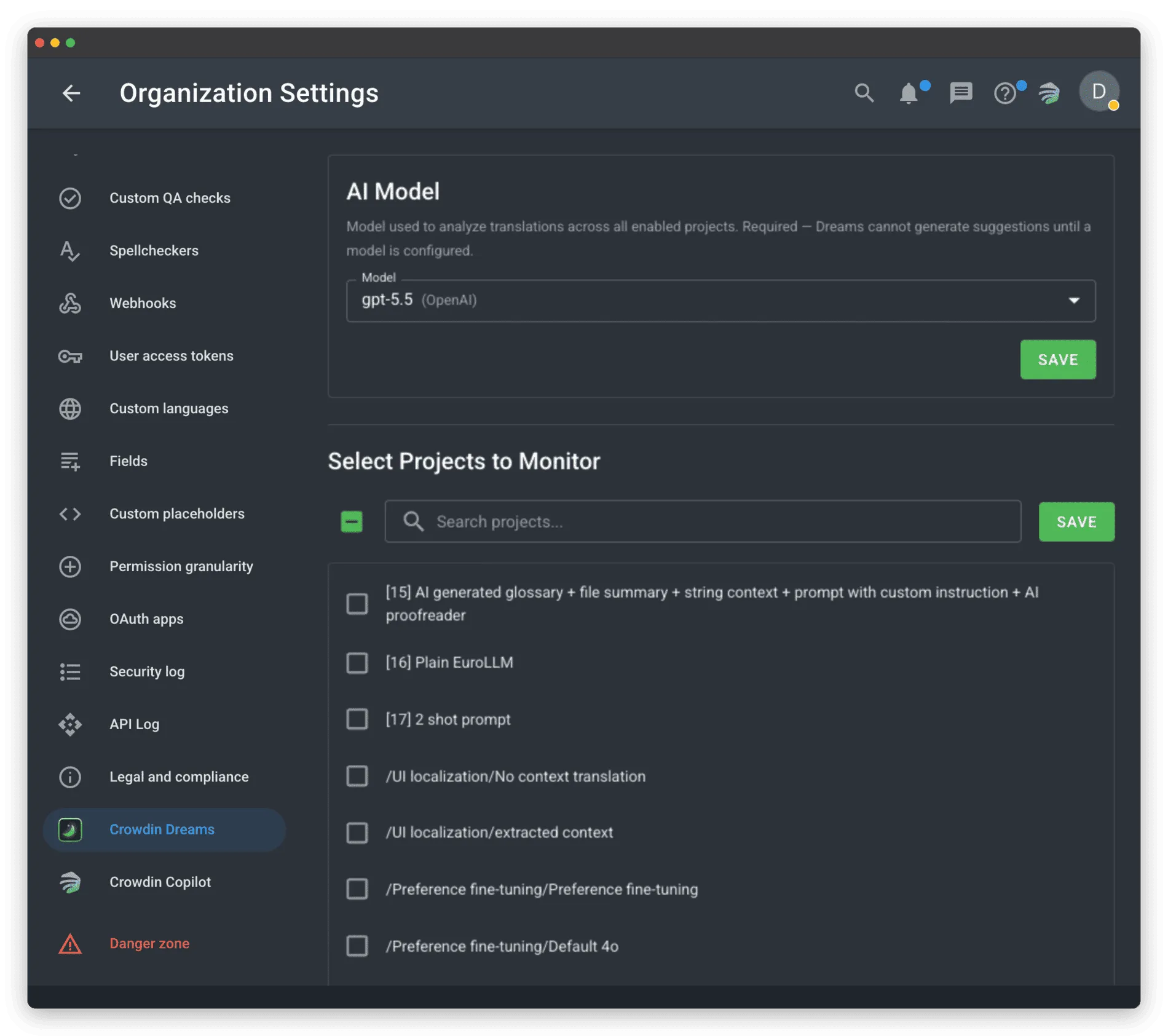
- The results: If you don’t want to wait for the daily run, just click Generate Now inside the project’s Dreams tab.
One-click improvements
To keep you in control, nothing changes automatically. Crowdin Dreams turns its findings into actionable suggestions inside your project tools or Project Advisor cards.
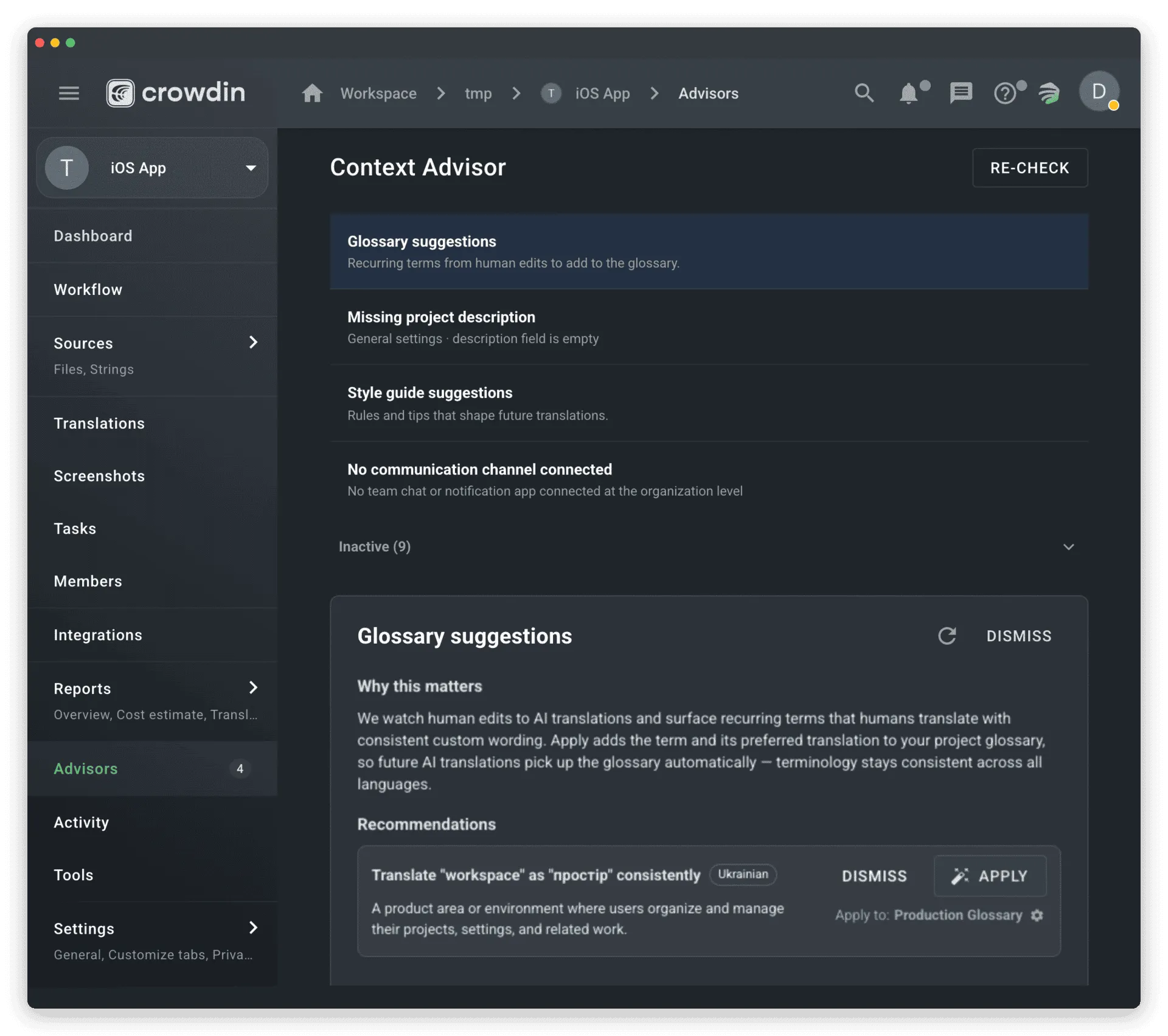
- Glossary terms: Words your translators consistently change to a specific alternative. Approving a suggestion adds it straight to your project glossary.
- Style guide rules: Structural patterns like tone, formality, or punctuation. Approving these appends them to your style guide, where the AI picks them up for future pre-translations.
Every suggestion shows a reason and real before-and-after examples from your project, so you can approve or dismiss it in seconds. Your translators keep working exactly as they always do, while your AI setup quietly gets smarter.
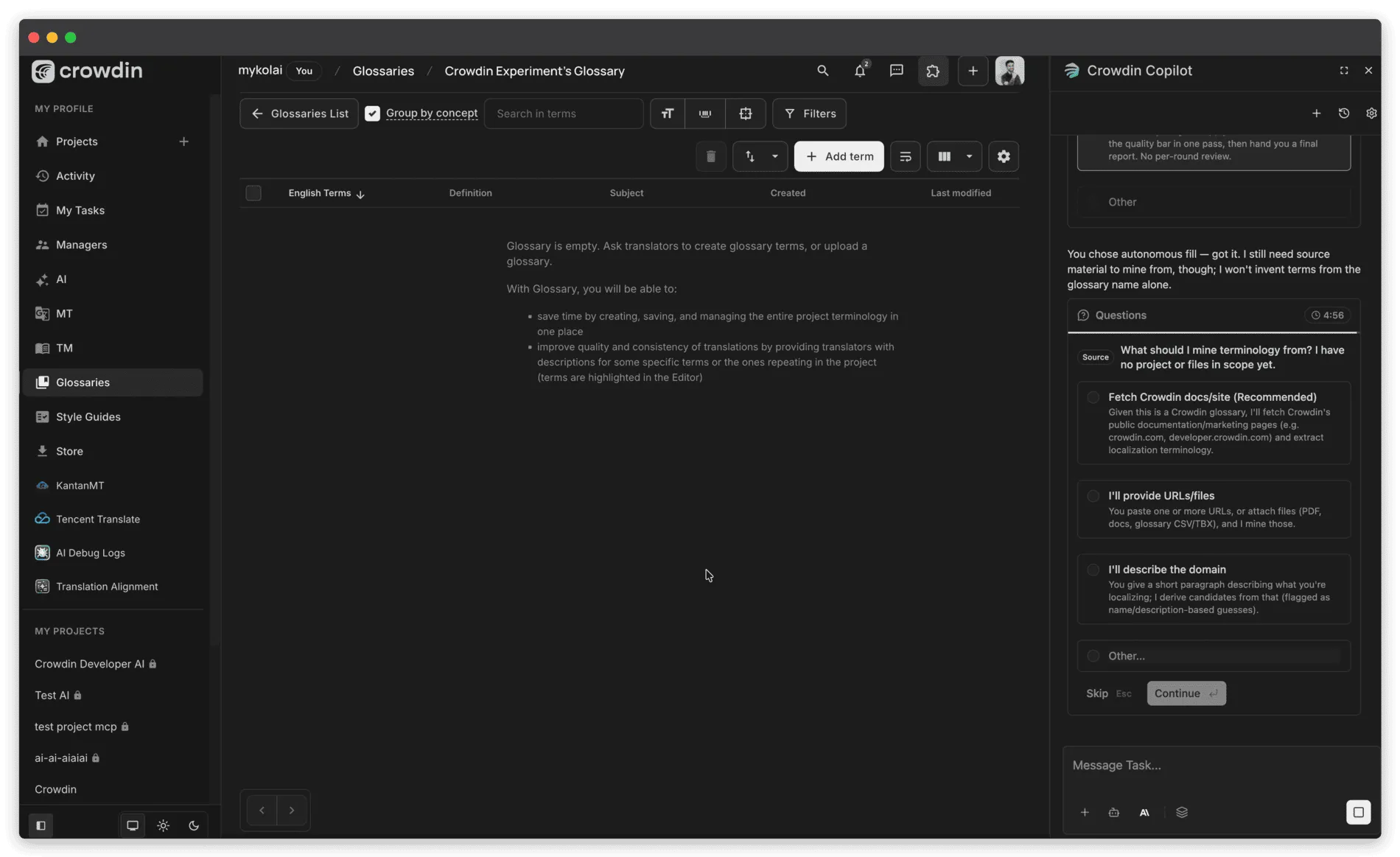
Build glossaries instantly with Crowdin Copilot
We’ve added a new glossary creation skill to Crowdin Copilot. Instead of building your corporate glossaries/dictionaries from scratch, you can now simply ask Copilot to handle it. The assistant will prompt you to provide a source, such as a website URL, an existing project, or a specific file, and automatically extract the most relevant terminology to jumpstart your new glossary.
Localize your product with Crowdin
Code context with the Cursor app
At Crowdin, we know that context is the secret to great translations. When linguists or your AI see only isolated words like “View” or “Run”, they are forced to guess, which can lead to mistakes, broken layouts, and lost time. The new Cursor app in the Crowdin Store fixes this by bringing real-world code context directly into the Crowdin Editor sidebar.
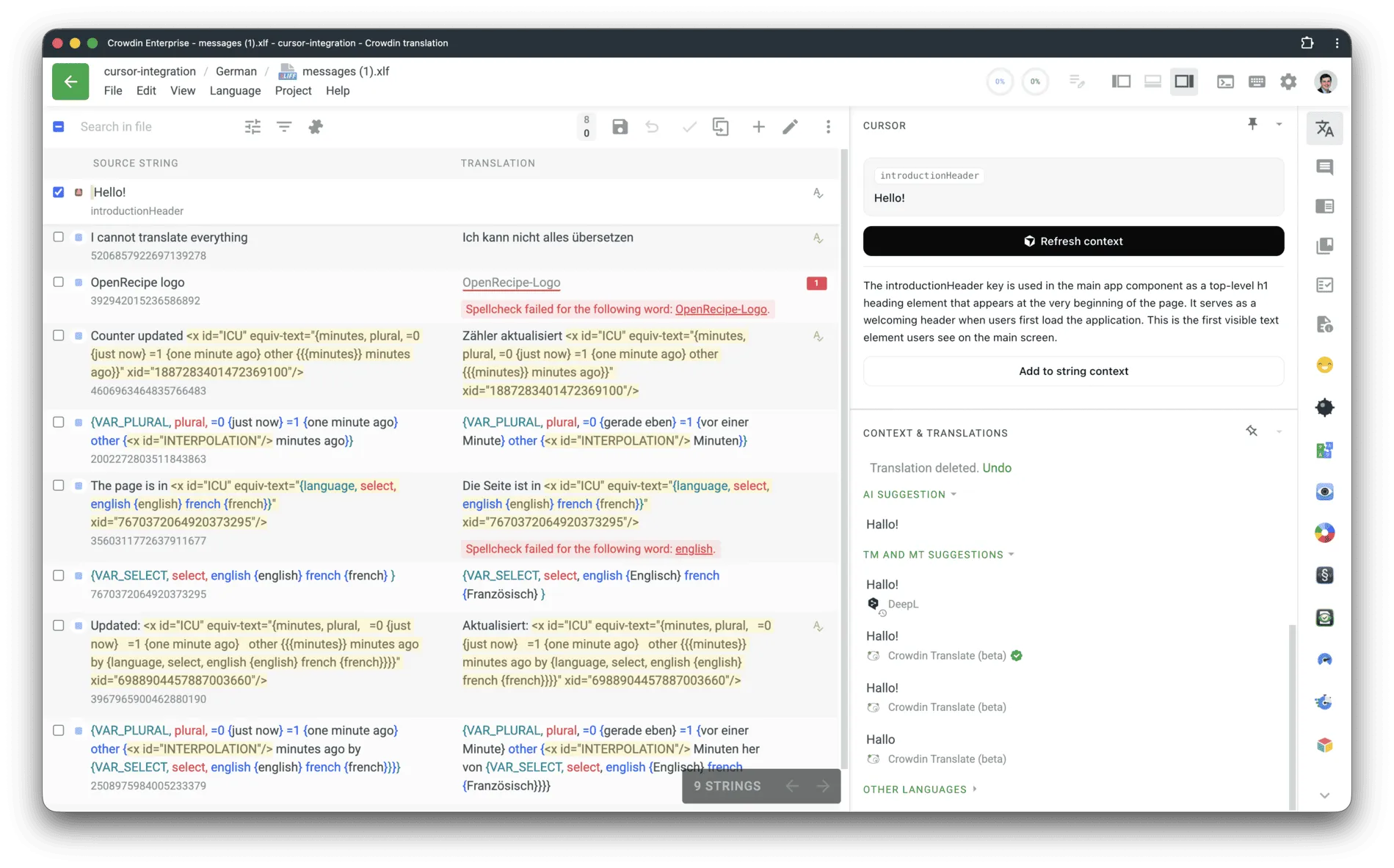
When a translator clicks a string and the Find Context button, a Cursor Cloud Agent investigates your connected repository and returns a short, plain-language explanation of how the string is used – whether it’s a button label, a menu item, an error message, and so on. Translators never get access to the code itself.
Project managers additionally see an Add to string context option, which stores that explanation on the Crowdin string (marked as ✨ AI Context and preserving any manually written context). Every translator, and every downstream AI workflow that consumes string context, including Crowdin Copilot, benefits from this richer context automatically, even without opening the Cursor panel.
AI spending limits and user quotas
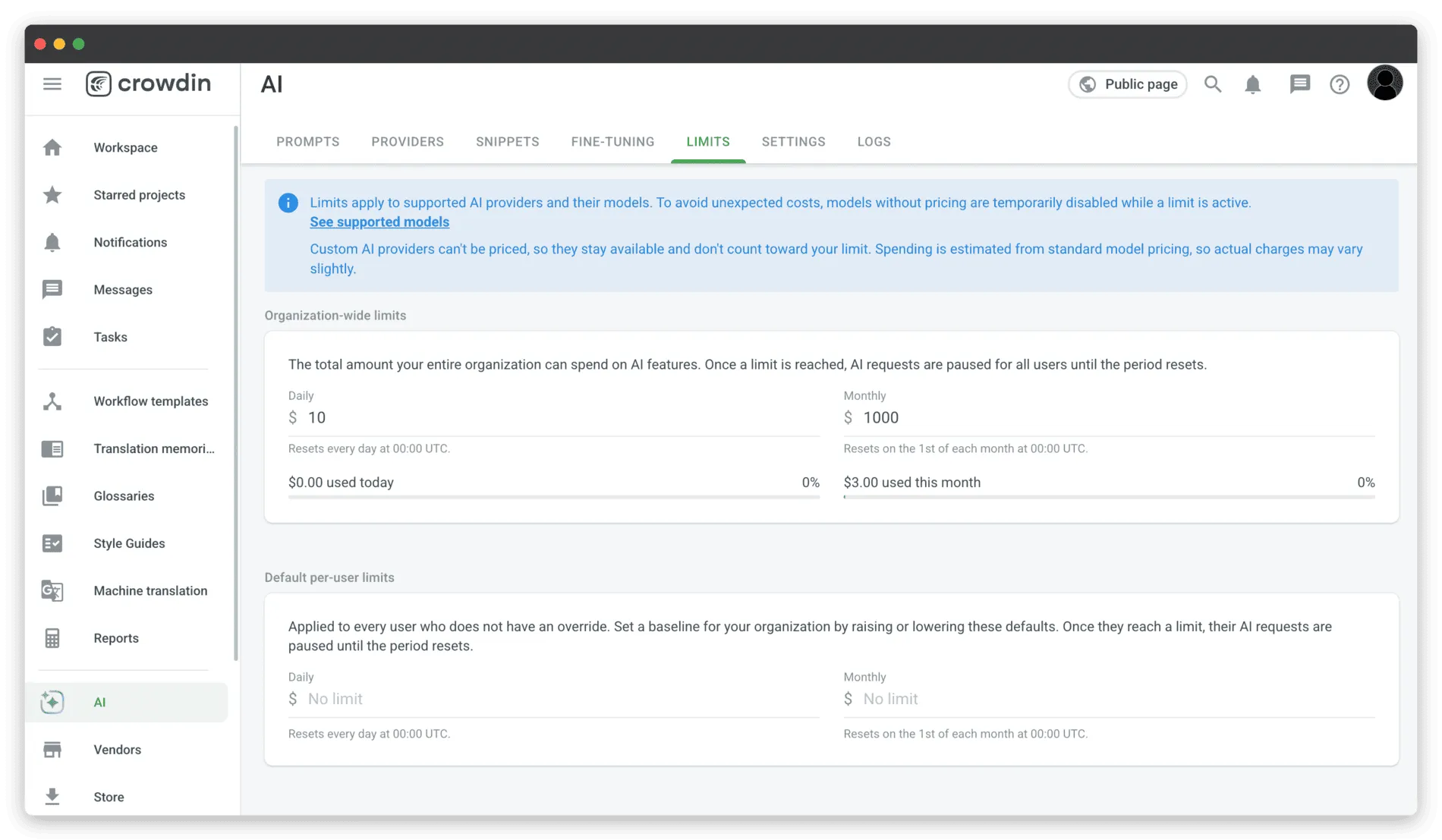
To help translation managers and agencies keep operational costs under control, we have introduced a dedicated Limits tab within the root AI section. This new menu allows you to set clear daily and monthly budget caps, ensuring you never face surprise bills from large-scale pre-translations.
From this dashboard, you can configure spending controls at multiple levels:
- Organization-wide limits: Set a hard ceiling on the total daily or monthly amount your entire workspace can spend on AI features.
- Default per-user limits: Establish a standard daily or monthly baseline for individual team members to prevent accidental overuses.
- Per-user overrides: Give specific users, evaluators, or trusted linguists higher custom limits without changing the baseline for everyone else.
Note: These budget controls apply strictly to Crowdin’s natively supported AI providers and models. External translation apps from the Crowdin Store do not count toward these limits, so keep this in mind when designing your automated workflows.
Crowdin connector inside Claude by Anthropic and ChatGPT
You can now access Crowdin directly within Anthropic directory. Designed to serve large enterprise teams, originally requested by our friends at Turo (see how Turo uses Crowdin), this integration sets up a native connection via the Model Context Protocol (MCP) using secure OAuth authentication.
With this connector, non-Crowdin users working inside Claude Code or Claude Cowork can localize content on the fly using their project translation memories and glossaries. This allows content managers and developers to draft copy directly in Claude and instantly check it against official brand terminology, without switching tabs to go to Crowdin.
Please note: Since the integration is currently undergoing final review and is not yet live in public catalogs, you can easily add it manually as a custom connector.
Read guides on how to add the connector to Claude.ai and to ChatGPT.com.
AI-automated review for Website Translator
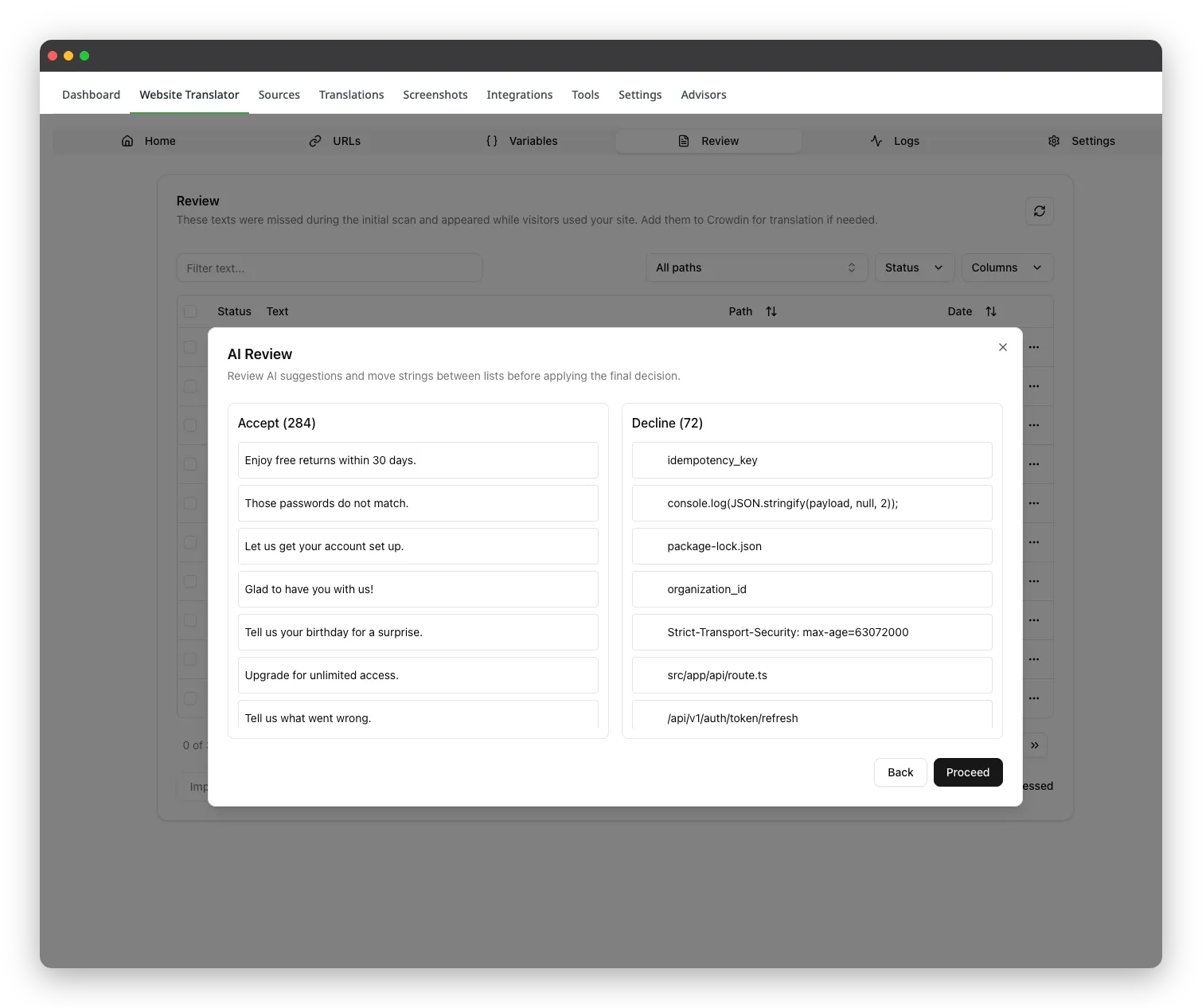
We’ve integrated automatic AI moderation into the Website Translator Review tab to protect live content without requiring 24/7 human oversight. If you manage a website with dynamic, user-generated content like comments, forum threads, or visitor posts, you know how easily spam and technical junk can find their way onto your pages.
To protect your site, Crowdin’s Website Translator holds new strings in a Review tab before they go live. While this workflow keeps your public pages safe from vandalism, manually checking a massive volume of incoming text can be incredibly time-consuming and create a constant monitoring burden for your team.
With this update, your active AI provider can handle this review pipeline for you. The AI scans incoming text as visitors interact with your site, filters out malicious content and technical noise, and automatically imports the approved strings for translation. This gives you the best of both worlds: your website stays completely protected against bad content, and your team doesn’t have to spend hours on manual oversight.
Localize your product with Crowdin
Azure Anthropic models via Microsoft Foundry
We’ve added Microsoft Foundry as a new native provider, making it easy to bring your own Azure-deployed Anthropic models straight into Crowdin Copilot. Once you connect the provider (go to AI > Providers > Microsoft Foundry) and configure your specific model deployments (such as Claude Sonnet, Opus, or Fable), they will automatically appear in your Copilot setup.
View AI Logs for 30 days
We’ve added a new Logs tab to the main AI menu, giving you a history of every single AI call routed through the Crowdin platform. This dashboard tracks all requests in real time, clearly showing whether they were successful or failed. It gives you an easy way to monitor your automated workflows, audit system activity, and quickly troubleshoot provider errors if a request goes wrong. Logs are available for the last 30 days.
A simpler, spreadsheet-style glossary
We refreshed the Glossary tab to make managing your termbases as clean and easy as possible, complete with instant column sorting and grouped search options. Toggling your view between terms and concepts now keeps your active filters intact, so you never lose your place while working. A similar interface update will roll out to the Editor workspace shortly.
Unlimited languages in multilingual view
When we first built the multilingual view in the Crowdin Editor, we capped the display at 30 languages. At the time, we thought 30 columns on a single screen was plenty for anyone to wrap their head around.
We underestimated your global reach. As it turns out, we have teams running massive localization pipelines that target 50 or more languages simultaneously. Hitting that 30-language wall meant these power users had to constantly switch configurations just to check on their global progress.
To fix this, we removed the 30-language limit entirely. We also optimized how the editor fetches data under the hood so you can open all your target languages at the same time without dragging down your browser’s performance. The strings render immediately, while the exact translation totals finish counting quietly in the background.
New apps at Crowdin Store
FormatJS
The new FormatJS app simplifies how web developers handle React and JavaScript internationalization. Normally, the formatjs extract command outputs source messages in a structured JSON layout that requires manual formatting before you can load it into your project. This integration reads that extraction output directly, removing an extra formatting script from your development pipeline. Your engineering team can now push developer-facing resource keys straight to Crowdin without writing custom code formatters.
Google Cloud Storage
If your organization stores raw digital assets, technical documentation, or app resources in cloud buckets, you can now connect Google Cloud Storage directly to your localization workflows. Instead of manually downloading updated files and sorting target folders upon export, the app automates file transfers in both directions. Your translators get fresh assets instantly, and localized variations save back to your designated storage buckets automatically.
Featurebase
Localizing user feedback portals, changelogs, and public product roadmaps helps international customers share their ideas and bug reports. The Featurebase integration extracts help center articles and feedback boards directly into Crowdin. Instead of forcing your product managers to manually duplicate user updates across separate tabs, the connector syncs the content automatically. Global users can read your upcoming features and browse community boards in their native languages, giving you a clearer picture of international user needs.
Infogram
The Infogram integration allows you to translate data visualizations, interactive charts, and business reports without touching a design tool. Rather than opening every visual asset manually to adjust labels and translate layout fields individually, the app pulls all translatable text strings right into the Crowdin Editor. Translators work within a clean text workspace while preserving your charts’ native formatting, saving your creative team from re-exporting graphic layouts for every single market.
Loops
For SaaS marketing and product teams using Loops, you can now automate the translation of email newsletters and automated onboarding sequences. The Loops integration handles copy synchronization in the background. Instead of copy-pasting your email text back and forth between your marketing dashboard and your localization projects, you can run automated, scheduled syncs. This ensures your global users receive product sequences and transactional updates that perfectly match your approved brand terminology.
Explore the Crowdin Store
You can install any of these integrations and 700+ more apps today directly from the Crowdin Store.
Other platform updates:
Bitbucket connection via repository access tokens
Secure your Bitbucket integration using Atlassian’s native Repository Access Tokens. Instead of linking a developer’s real, personal user profile to sync your repositories, you can configure dedicated tokens under the integration setup. This isolates permissions to the exact project scopes needed and prevents synchronization errors caused by individual user account rate limits.
Custom AI models for the AI pipeline
We have decoupled model listings from our core code. Crowdin now dynamically pulls model definitions and capabilities directly from the backend. If your organization uses an in-house, custom-developed language model, you can register and integrate it into your Crowdin AI Pipeline without waiting for core platform updates.
Secure agent authorization for Crowdin MCP
We’ve upgraded our Crowdin MCP (Model Context Protocol) integration by adding native authorization for AI agents. Now, coding assistants and autonomous AI tools can securely authenticate and connect to your Crowdin projects automatically.
Developer API expansions for custom apps
- Visual canvas capturing: We’ve introduced AP.captureScreenshot, a clean canvas capturing method that excludes standard iframes to provide perfect visual context for your custom application workflows.
External tools
We also released new versions of:
- Apps SDK v2.0.0: New version cleans up the module’s setup and database code to make it much easier to use. We updated the data storage layer using Drizzle ORM, tidied up file import paths, and dropped old, unused features like MySQL support and the AI Tools modules. Read on to see exactly what changed and how to update your project to the new version.
- Android Studio Plugin 2.3.0
- JS API Client 1.56.0
- .NET API Client 2.43.0
- Python API Client 1.27.0
- Java API Client 1.33.0
Try the new updates
Ready to speed up your workflows and try out the new automation features? Head over to your project settings to configure your new AI controls, or explore the updated developer portal for implementation guides. As always, we’d love to hear your feedback on our community forum!
Localize your product with Crowdin
