

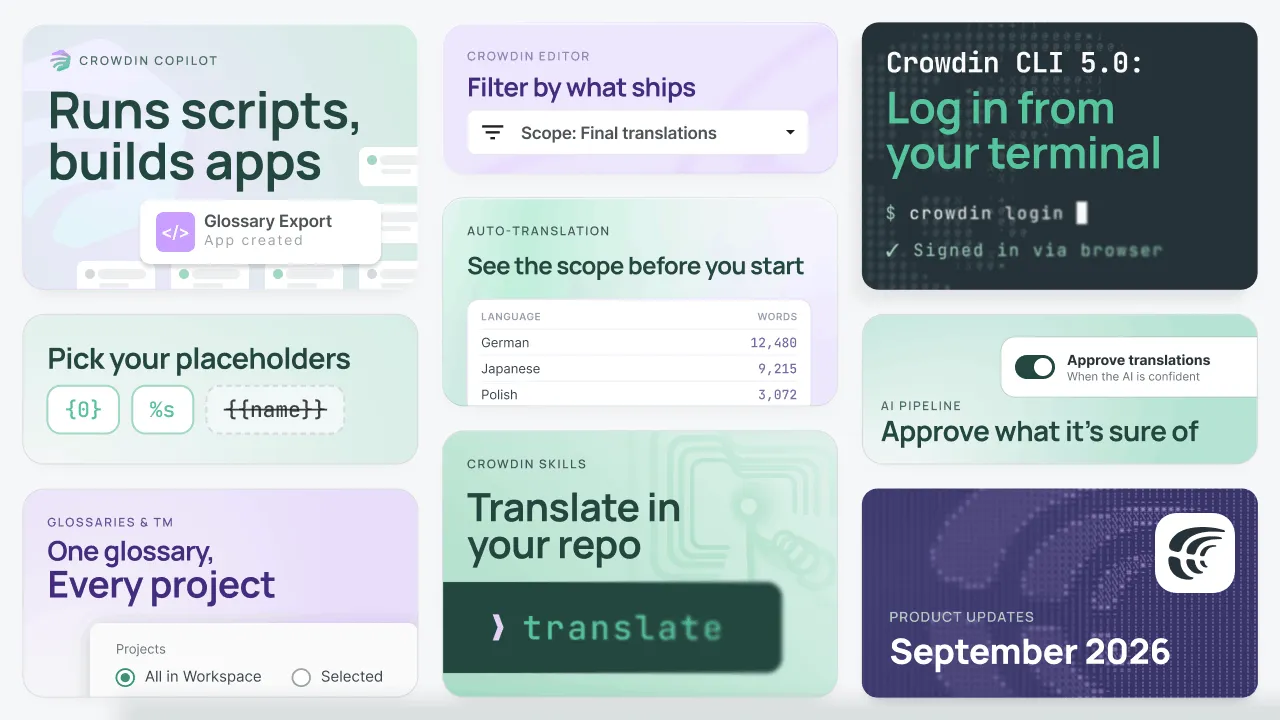
This September, AI took on more of the work in Crowdin, and your organization’s context now reaches the teams that translate outside it. Copilot runs scripts and builds apps without a developer, AI Pipeline can leave proofreaders only the ambiguous strings, one glossary and TM can cover every project, and teams that translate in their repository get the same Crowdin context.
Crowdin Copilot: scripts and apps, no developer needed
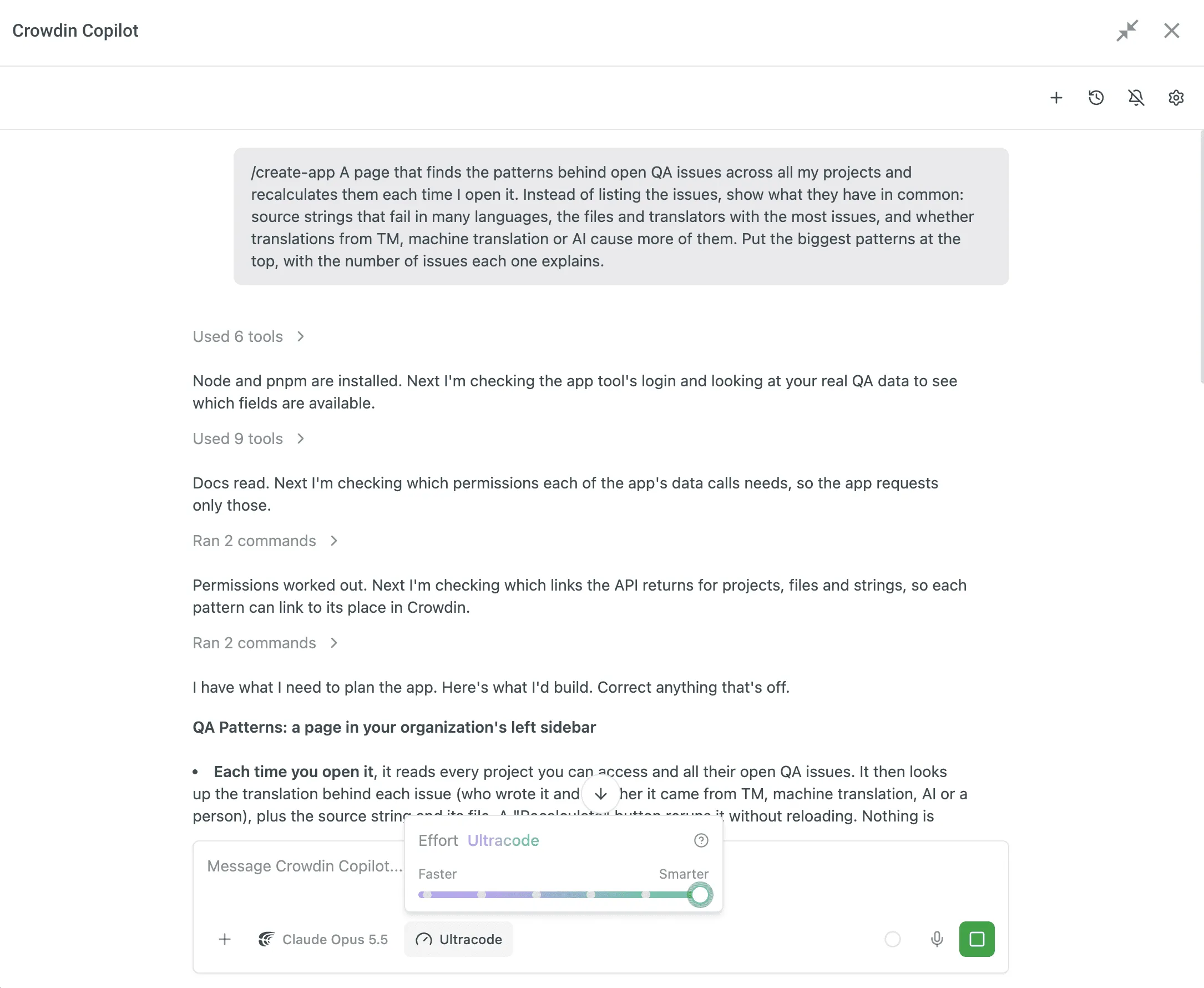
Crowdin Copilot now has a workspace of its own that persists between chats. It writes and runs Node.js, Python or Bash scripts against the Crowdin API with no setup on your side, which covers bulk changes and cross-project reports that used to need a developer.
Copilot can build apps as well. Describe a routine you repeat in Crowdin, or type /create-app in the chat. Copilot builds a small app, publishes it in your organization and gives you the link, and you write no code.
Copilot no longer asks you to pick an agent before you start. Your custom agents keep their instructions and now work as subagents. When a request matches an agent’s description, Copilot hands the task to it and shows the handoff in the chat. A skill can now include reference files and scripts next to its instructions, and Copilot reads and runs them.
An effort slider lets you choose between a quick answer and a thorough one, and the new Ultracode mode splits the biggest jobs across several agents working in parallel.
Copilot also remembers your preferences from one chat to the next. The chat is easier to follow too. Tool calls fold into one expandable line, a status line shows what Copilot is doing and for how long, and the context indicator in the footer now also shows your monthly AI usage and where you stand on your AI limits.
The Translate skill: local agents, organization-wide context
Translation usually happens in the TMS. Some teams translate locally instead, with a coding agent in the repository, for faster results. For a small project with a few languages, that often works well. Good translation needs as much context as it can get, and the code carries a large part of it, like whether “Order” is a button or a table header.
What the code doesn’t carry is what your organization has decided about language: agreed terms, past translations, tone, reviewers’ corrections. Without it, every agent run starts from zero, and translations drift between repositories.
At Crowdin, we work to close those context gaps wherever translation happens. With the new translate skill, the agent in your repository translates with your organization’s context.
The skill works together with the other Crowdin skills. Using the Crowdin CLI skill, the agent syncs with Crowdin and pulls the context before translating: the latest translations, the glossary, the style guide, and, for languages with little history, the translation memory. For strings that aren’t clear on their own, it uses any notes from the context extraction skill and reads the code where they’re used.
The developer sees the new strings in the running app within minutes. The translations are also saved to Crowdin, where your team sees progress for every language and decides what to approve. Every approved translation goes into your translation memory, ready for the next run by any agent.
All Crowdin skills are free and open source on GitHub. They work with Claude Code, Cursor, Codex, Gemini CLI, GitHub Copilot, and other agents that support Agent Skills, and come as plugins for Claude Code, Claude Cowork, and Codex. Switch agents any time. The context stays in Crowdin.
Add the Crowdin skills to your coding agent
An organization-wide glossary and TM, set up once
Each glossary now has its own sharing setting: every project in your account, or only the projects you select. In Crowdin Enterprise, “every project” can mean the whole workspace or a single group. Translation memories and style guides work the same way.
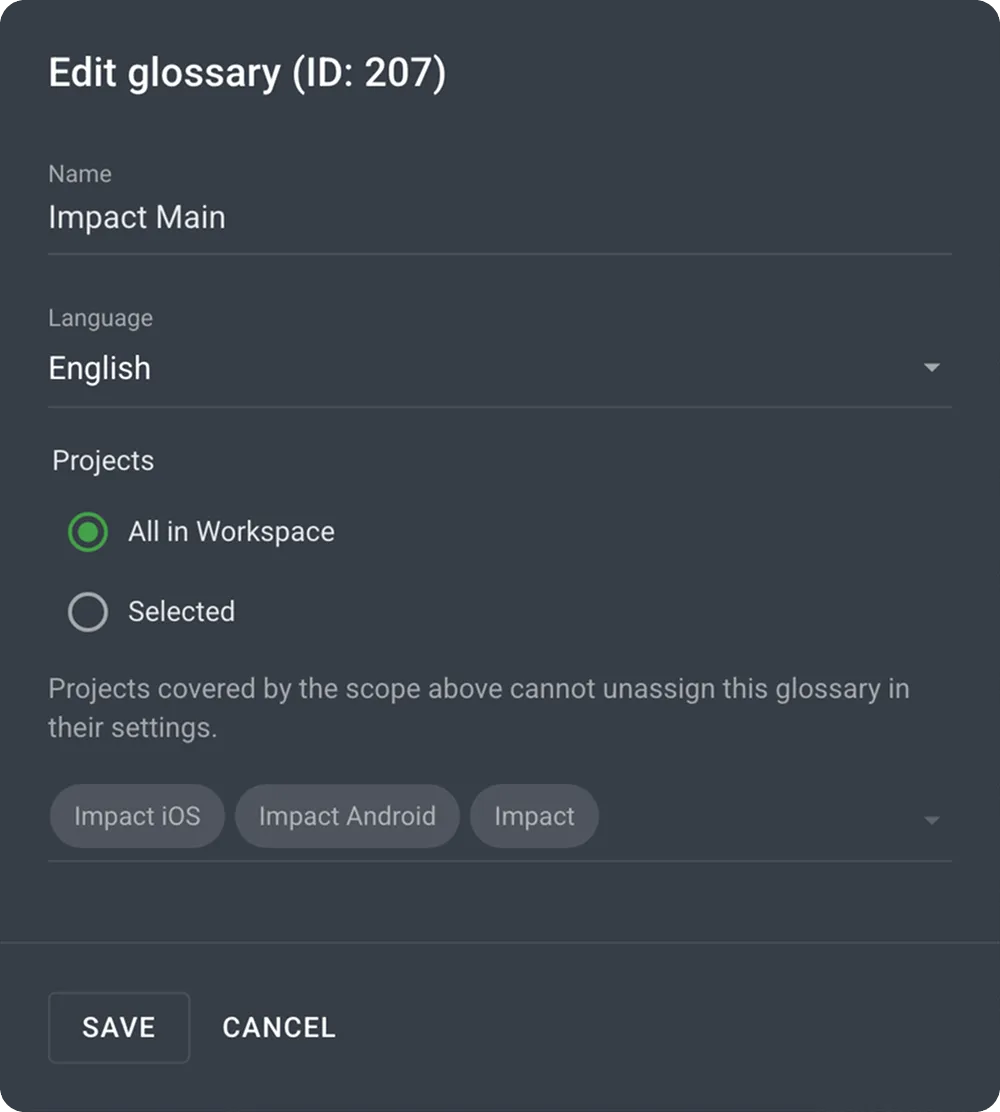
That makes an organization-wide resource a simple setting. Create a glossary on day one, share it with all projects, and every project uses it, including the ones you add later, for translators and AI alike. A project can’t drop a resource shared this way, so your terminology stays the same everywhere.
More in the Glossary and Translation Memory documentation.
AI Pipeline: translate everything, review only the ambiguous
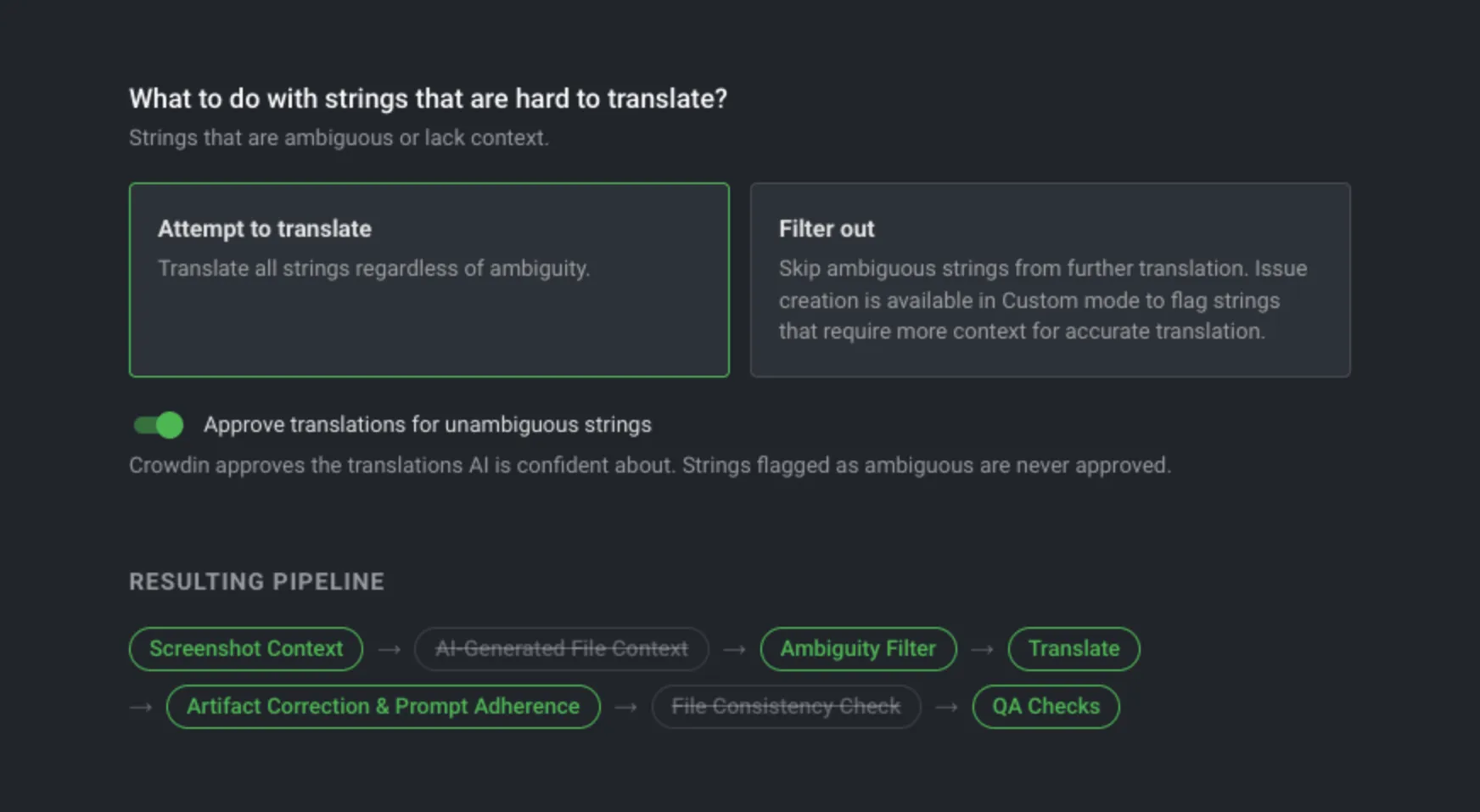
Most strings have one correct translation. Some don’t: the translation depends on context the project doesn’t give, like the speaker’s gender in Japanese or formal vs informal address in German. Since January, the AI Pipeline ambiguity filter has held these strings back. They stayed untranslated until someone added the missing context.
Now the pipeline can translate all of your content, and proofreaders review only the strings that might be ambiguous. Turn on automatic approval, and translations the AI is confident about are approved. Flagged strings can now be translated too, but stay unapproved, waiting for a proofreader.
Auto-Translation: see the size of the run, and hear when it finishes
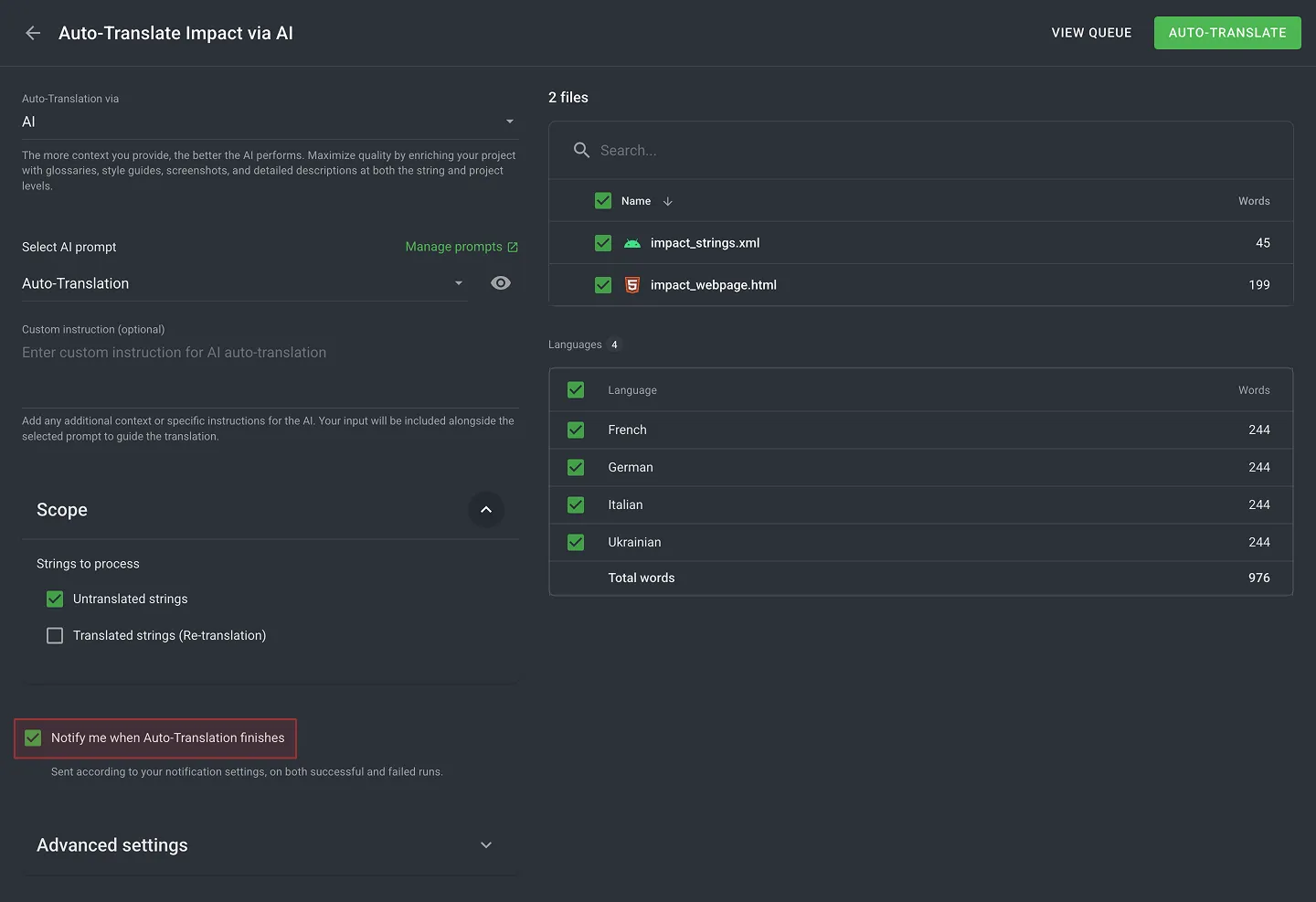
Before you start a run, you can now see how much is in scope. The dialog lists your target languages with a word count for each, and the numbers update as you change the files, labels, or scope you select.
You can also ask to be notified when the run finishes: in the app, by email, or in Slack, with a link straight to its report. Auto-Translation has its own group in your notification settings, so you can route it separately from everything else. For automation, a new preTranslation.completed webhook event fires when a run ends.
See the Auto-Translation and Webhooks documentation.
AI usage: export your AI spend for cost reviews
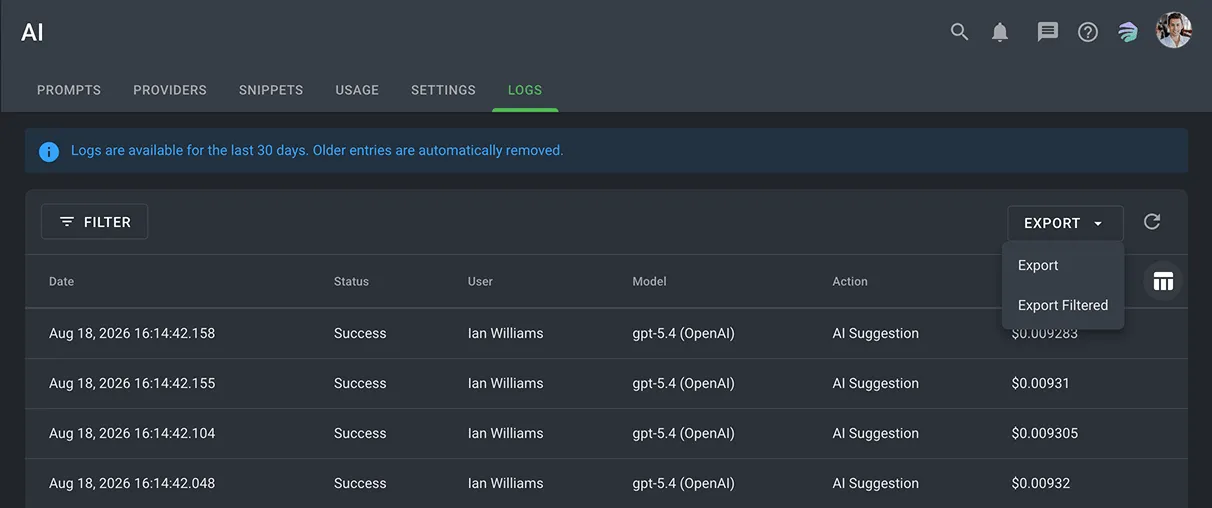
The Limits tab is now called Usage. The Logs tab now exports too: take every record, or just what your filters show, into a cost review or your own reporting.
Details in the AI documentation.
Editor: filter by the translations that ship
A string can carry several translations, and the Editor’s filters used to make no distinction between them. If you asked for strings translated by one person, you got everything they had ever suggested, shipped or not.
The advanced filter’s Translations section now has a Scope selector. Leave it on All translations, or switch to Final translations to match only the translation at the top of the list, which is the one that goes into your downloads. The same option sits in the Search in dropdown, so a plain search narrows the same way.
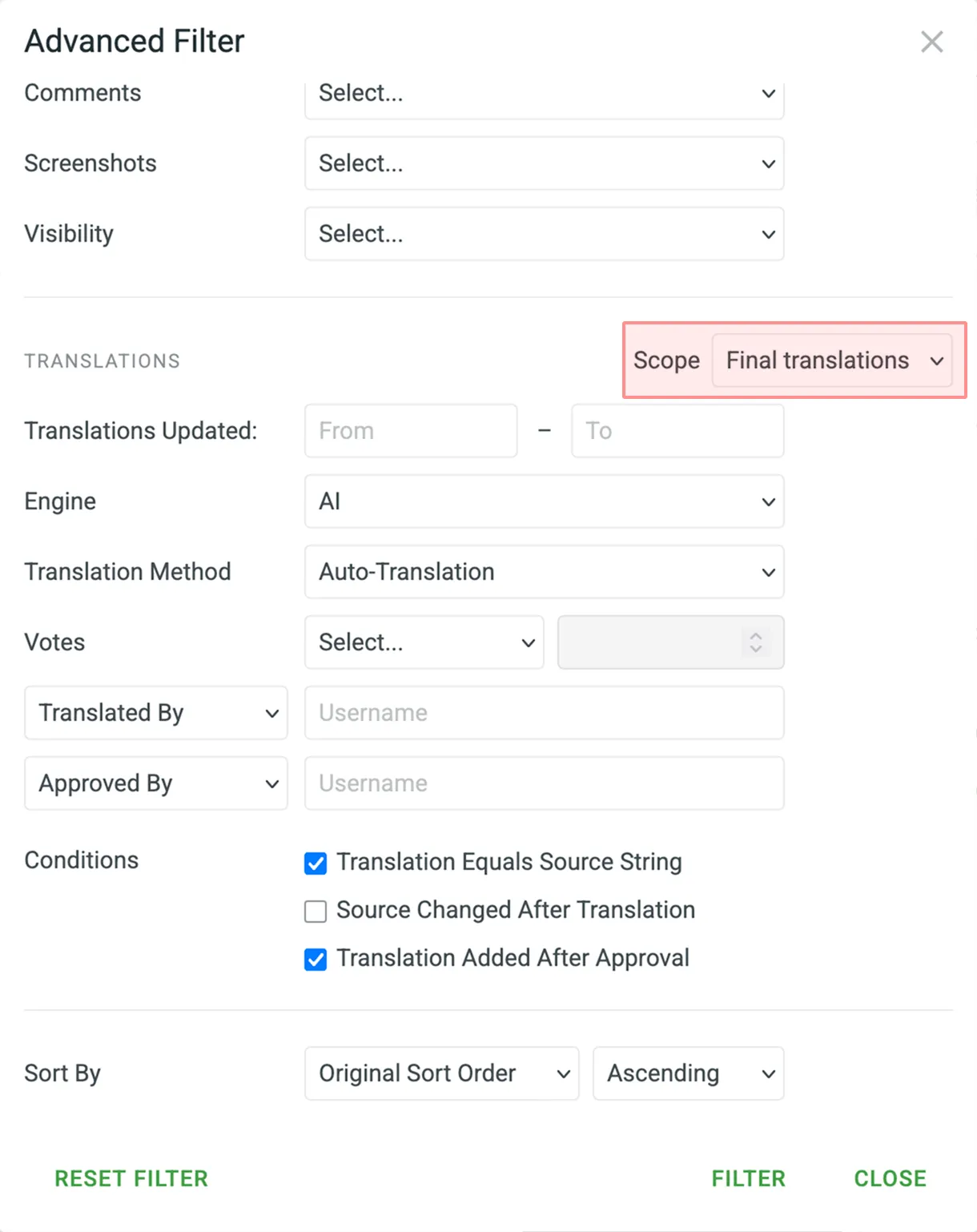
Three questions get easier: what one translator actually shipped, which of your shipped translations came from Auto-Translation, and where the text you ship still equals the source.
The advanced filter changed in smaller ways too, with clearer names for several conditions and search moved into the dialog. The full list of filter parameters is in the Editor documentation.
Localize your product with Crowdin
Placeholders: pick the ones your project actually uses
Crowdin recognizes 28 kinds of placeholder syntax, and now you decide which of them apply to your project. A new Placeholders section in project settings lists them all with examples. Switch off what your project doesn’t use, like FreeMarker tags or Mailchimp merge tags in a Python app. The Editor’s highlighting and the Placeholders QA check then cover only the syntax that’s left.
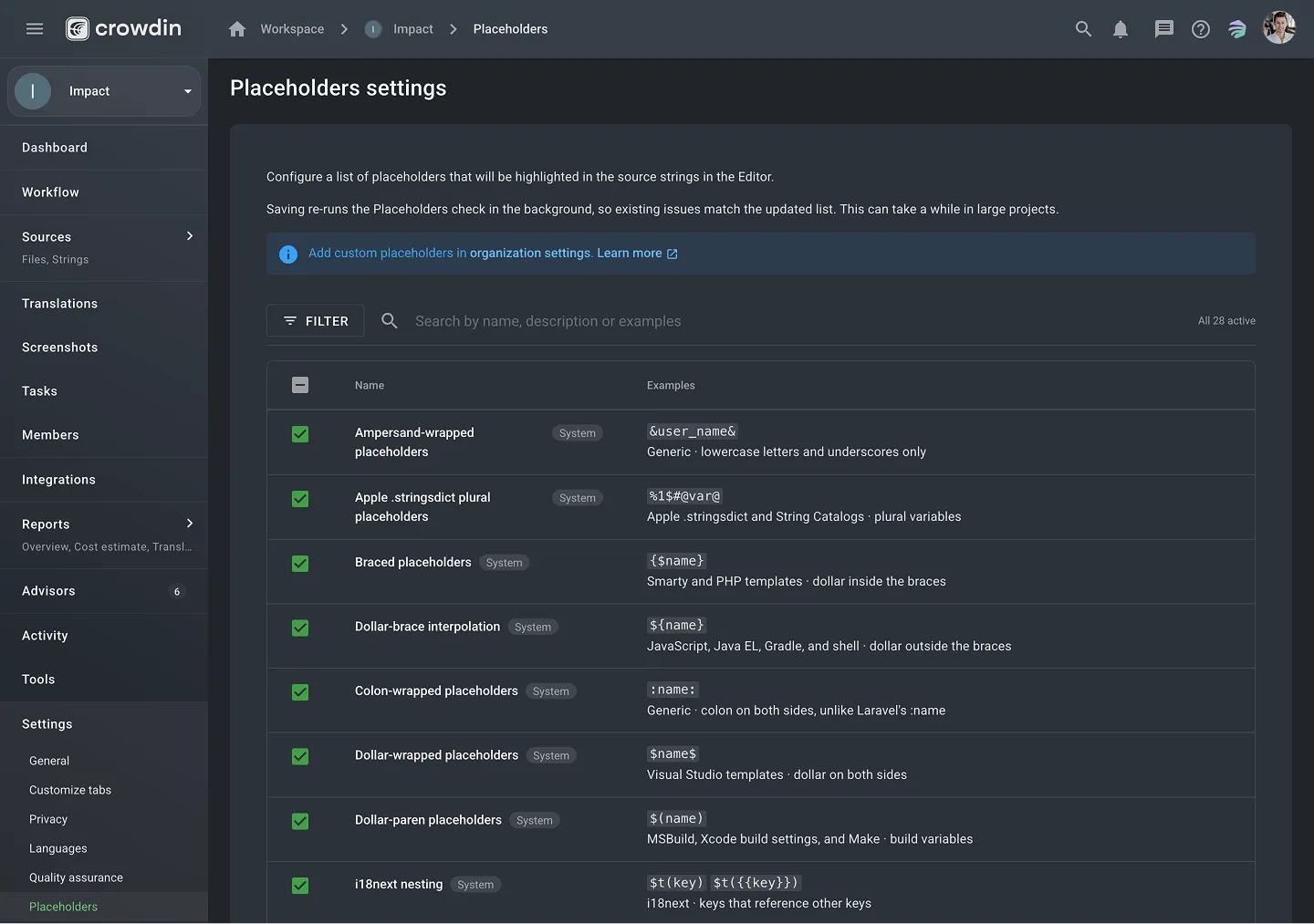
Existing projects keep the settings they have, with every type still recognized.
More in the Placeholders documentation.
Crowdin CLI: less setup, more control
Four things landed in the CLI this month.
crowdin login authorizes the CLI from your own terminal, so an API token no longer has to sit in your configuration file. The skills in crowdin/skills authorize that way now too.
The translation memory and glossary lists take an --assigned flag that narrows the output to the resources the current project actually uses, instead of everything in the account. A new style-guide command puts the third resource type on the command line beside the other two. And the language list can now print each language’s text direction and plural categories with --verbose.
Everything else is in the Crowdin CLI documentation.
Figma plugin: match strings by key, and choose what to send as new
Two releases of Crowdin for Figma this month, both about sending the right text to the right string.
A new send option, Compare strings by key instead of text, matches your Figma text against existing Crowdin strings by their identifier, so two buttons that both read Save no longer link to each other’s string. Elements already linked to a Crowdin string carry a link icon in the send list: click it, or Unlink all, and they go to Crowdin as new strings instead of updating the ones they were attached to. That matters most for variables, which the plugin started sending last month.
The full list of send options is in the Figma plugin documentation.
Other platform updates
- Three more AI models are available wherever you pick one: GPT-6 Astra, Claude Fable 5.1, and Gemini 3.8 Flash. Claude Fable 5.1 uses your own Anthropic key.
- Google Vertex AI connections now accept the
usandeumulti-region locations, not only a single region. - Report periods in Cost Estimate, Translation Costs, Time Spent, Translator Accuracy, and Auto-Translation Accuracy now show the exact start and end of the period, with the time and the UTC offset of the time zone the report was generated in. Archived reports keep that time zone, so everyone who opens a report sees the same boundaries.
- Re-translation can now be limited to a date range, not just to everything older than a point in time: pick Before, After, or Between a pair of dates.
- Custom fields on glossary terms and concepts in Crowdin Enterprise. The fields your organization defines can now sit on a term or a concept, and they follow it wherever it is edited: the Terminology panel in the Editor, and the term and concept dialogs in Glossaries.
- Task scope in Crowdin Enterprise. A task that skips strings already covered by another task now lets you say what “another task” means: All tasks in the project, or Same workflow step. The second option needs a project that has a workflow.
- Announcements from apps, in Crowdin Enterprise. A new announcement module lets an app put a message in the header or on the Glossaries page, signed with its name. Readers can dismiss it, and the app can add a button.
- The new how-to-crowdin skill helps your AI assistant answer “how do I do X in Crowdin”. Describe the problem in your own words, and it finds the cheapest route, from a built-in setting to a Store app.
- Right-click the Editor’s file tree for file actions: open in a new tab, copy a link, download, export as XLIFF, or upload translations. Select several files to export them as one XLIFF.
- Editor search now highlights the matching text wherever it appears.
- The Font submenu in the Editor adds superscript and subscript.
- QA checks now understand digits and punctuation in many more languages: the Numbers check covers 25 languages (up from 5), and Punctuation covers 57 (up from 30).
- The Cost Estimate report in Crowdin Enterprise now prices each workflow step from the source language that step actually uses. This matters in workflows where a step translates from a different source than the project’s, such as a pivot language.
Crowdin Store updates
- Opal by Welocalize. Opal is Welocalize’s AI post-editing and quality estimation platform, trained on your own translation memories, glossaries, and style guides rather than on generic data. The connector sends a file to Opal once it is fully translated into a language, writes the post-edited text back into the project with Opal recorded as the author, and approves the segments Opal judges finished. When your reviewers approve the file, the final version goes back to Opal, so the model learns from the decisions people actually made. Three kinds of content are never sent: human-written translations, perfect TM matches, and approved TM matches.
- Braze: a new version of the connector covers Email Templates and Content Blocks.
- SCIM: name fields stay in sync, and an organization can now stop the invitation email that went out whenever a user was provisioned through SCIM.
- The Store has a Skills category, so agent skills sit together rather than among the apps.
New podcast episodes
Two new episodes of the Agile Localization Podcast came out this month:
- Localization in the security industry with Olena Azanova – Olena Azanova, Localization Team Lead at Ajax Systems, on running localization across more than 12 markets, where a translation error can leave someone locked out of the device guarding their home.
- From how-to docs to why-it-matters: technical writing with Yaakov Simon – Yaakov Simon, Documentation Manager at Cato Networks, on what documentation is for once AI answers the how-to questions on its own, and why his team measures enablement instead of page views.
You can listen to all episodes on Apple Podcasts, Spotify, or YouTube.
New case studies
Two customer stories came out this month:
- From good intentions to a real system: EMCD’s localization success story – Victoria Franskevich, Localization Team Lead at EMCD, on building localization from zero at a crypto platform: the architecture, the AI agents, and a custom JSON plural export.
- 5M Words a Quarter: How Sinch Automates 65% of Translations – a multi-brand setup built with Undertow on Crowdin Enterprise, routing workflows by content type so human review lands where it changes the outcome. Sinch processed about 5 million words in Q1 2026, more than in all of 2025.
External tools
This month we released new versions of:
- Crowdin CLI 5.3.0, 5.2.0, 5.1.0, 5.0.2
- GitHub Action v3.3.0, v3.2.0, v3.1.0, v3.0.2
- Android SDK 1.20.0, 1.19.0
- JS API Client 1.59.0, 1.58.0, 1.57.0
- Java API Client 1.36.0, 1.35.0
- Python API Client 1.30.0, 1.29.0
- PHP API Client 1.25.0
- .NET API Client 2.45.0, 2.44.0
- Apps SDK 3.5.0, with the major 3.0.0 earlier in the month
- Unity Plugin 0.12.0
That’s September. If you try one thing, describe a routine you repeat in Crowdin and let Copilot build an app for it. See you next month.
Localize your product with Crowdin
